Can a Digital Whiteboard Bring Remote Students Back Into the Conversation?

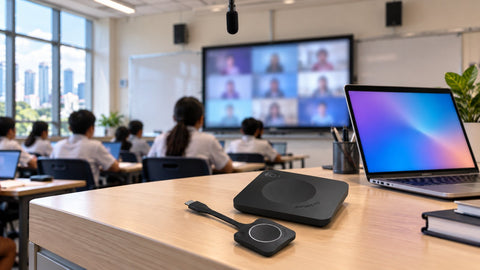
A digital whiteboard can bring remote students back into the conversation, but only when they can read the board clearly, hear the classmates who are talking about it and add to it themselves. Filming a board from across the room rarely does that; sharing the board as digital content into the lesson call, with a camera and microphones covering the room, usually does.
This guide compares the three practical ways to do it, using interactive displays and room kit from the store: the Samsung WM75B Flip Pro and Samsung WM65R Flip 2, the MAXHUB XBoard V7 V6550, the Logitech Scribe whiteboard camera, and the Yealink CP50 and Yealink UVC40 E2 for audio and video.
Which whiteboard approach works best for remote students?
| Approach | What remote students see | Can remote students write? | What the room needs | Store example |
|---|---|---|---|---|
| Interactive display shared into the call | The board as crisp digital content | Usually view only, unless the board is a shared app | Touch display, camera, microphones, a PC or casting link | Samsung Flip Pro or Flip 2; MAXHUB XBoard V7 |
| Shared cloud whiteboard in the meeting app | The same live board as the class | Yes, from their own device, subject to app and account settings | Touch display or teacher tablet, platform accounts | Microsoft Whiteboard in Teams on any of the above |
| Physical whiteboard with a content camera | An enhanced image of the marker board | No, they watch and talk | White marker board, content camera, room system | Logitech Scribe |
Why do remote students drop out of the conversation?
In most hybrid lessons, remote students do not lose interest because of the platform. They drift because they cannot read what is on the board, cannot hear the student who just answered at the back of the room, and have no easy way to contribute except unmuting and interrupting. A digital whiteboard fixes the first problem well and the third one partly. The second needs microphones, which is why the audio section below matters as much as the board.
Samsung Flip: how does it handle hybrid lessons?
Samsung's Flip Pro page describes the hybrid classroom directly: "By installing a camera on top of the Flip Pro, students at home and in the classroom are participating in class together," with the webcam bought separately. Samsung quotes 26 ms writing latency (single touch), 20-point multi-touch, SmartView+ connections for up to 50 devices with up to four screens shown at once, and a USB-C port that carries touch control and 65 W charging to a connected laptop.
The Samsung WM75B 75" Flip Pro 4K UHD Interactive Display (S$4,875.00) is listed as a last-batch Flip Pro with IR touch, two HDMI inputs, a DisplayPort input, an OPS slot, built-in 40 W speakers and 3 years local warranty. Because the teacher's laptop connects with one USB-C cable, the board can be shared into Teams or Zoom from that laptop. For tighter budgets, the Samsung WM65R 65" Flip 2 4K UHD Interactive Display (S$1,850.00) offers InGlass touch, screen mirroring and AirPlay 2, and its listing notes that meeting notes can be shared with attendees at the end of a session. See the full range in the Samsung Flip collection, and the classroom comparison in Samsung Flip Pro vs LG CreateBoard.
MAXHUB: is an all-in-one board easier for hybrid classes?
An all-in-one board puts the camera, microphones and PC in the display, which removes a lot of cabling from a classroom. The MAXHUB XBoard V7 V6550 65" 4K All-in-One Interactive Display with i5 PC is price on request; we quote it per room configuration. Its listing describes a 50MP triple-lens camera with speaker tracking and a privacy shutter, a 16-microphone array with a 15 m pickup range across 180°, 50-point infrared touch with Windows Ink, and a plug-in Intel Core i5 module running Windows 11 Pro so Teams and Zoom run on the board itself. The listing states 3 years local warranty. Other sizes are in the MAXHUB Interactive Displays collection, and Yealink's equivalent is covered in our Yealink MeetingBoard post.
Can remote students write on the board too?
This is where the meeting app matters more than the hardware. Microsoft's support page on sharing a whiteboard in Microsoft Teams explains that you open the meeting's share tray and choose Microsoft Whiteboard, that an existing board can be shared so a class can pick up where it left off, and that "There's no need to switch between apps or share your screen." Microsoft also notes that Surface Hub and Teams Rooms devices "primarily utilize resource accounts", so they default to a new board or the board linked to the meeting. In practice, prepare the board in the meeting invite and let students join with their school accounts. Who may write, and how guests are handled, depends on your school's tenant settings, so check with your IT administrator.
Once remote students can write, give them a reason to. Short tasks work well: a remote pair solves one question on the shared board while the room solves another.
What if the teacher prefers a normal whiteboard?
Some teachers will always reach for a marker. A content camera keeps that habit and still gives remote students a readable board. The Logitech Scribe Whiteboard Camera for Conferencing Rooms is price on request; we quote it with the room system. Logitech specifies 1080p at 15 fps across a 148° field of view, boards up to 1.2 x 1.8 m, and AI that lets participants see "through" the presenter. It works with Microsoft Teams Rooms on Windows, Google Meet and Zoom Rooms, or as a USB camera. Microsoft's Teams Rooms content-camera guidance adds two points to plan for: the feature needs a Microsoft Teams Rooms Pro licence on the room, and "A writing board that isn't white isn't supported." Remote students watch rather than write with this approach, so it suits explanation-heavy lessons.
Do remote students need to hear the room as well as see the board?
Yes, and this is where many hybrid classrooms fall short. A board shows the work; the discussion around it happens in the room. The Yealink CP50 Professional-Grade Video Conference Microphone (S$525.00) has an 8-microphone 360° array with a 6-metre pickup radius per its listing and connects to the teacher's laptop over USB-C. On a board without a built-in camera, such as the Flip, add a camera like the Yealink UVC40 E2 All-in-One USB UHD 4K Video Bar (S$645.00), which has a 120° 4K camera with auto framing, eight microphones and a speaker. Both listings state 2 years local warranty. For wireless sharing from student devices, see Wireless Presentation Systems: Convenience or Another IT Headache?
What are the honest limits?
A digital whiteboard narrows the gap but does not close it. Remote students still miss side conversations, body language and the energy of the room, and there is a short delay on any video call. A teacher running a lively class may also forget to check the remote students. A simple fix is to name a "remote buddy" in the room who watches the chat and brings questions forward. Quality AV can make a hybrid lesson feel more natural for everyone; it cannot make it identical to being in the classroom.
The board brings remote students into the lesson. The microphones and the teacher's habits keep them there.
If you are still choosing between a board and a projector, read Are Traditional Projectors Holding Back Modern Classrooms?; for running a lesson when the teacher is the remote one, see What Happens When a Teacher Can't Be in the Classroom?; and for the full picture, From Classroom to Living Room: The Technology Behind Hybrid Education.
Buying interactive displays for hybrid classrooms in Singapore
SourceIT supplies Samsung, MAXHUB, Logitech and Yealink with local warranty; the warranty terms above are as stated on each listing, and for other items confirm the term for your SKU when requesting a quote. Prices are as listed on 24 Oct 2026 and the priced items were in stock at the time of writing. Use Request for Quotation on the product page, call (65) 6978 3502, email Sales@sourceit.com.sg or see our education AV page. Schools and government buyers can read about government sales and our guide to GeBIZ procurement; classroom design and installation are available.
Frequently asked questions
Can remote students write on a classroom interactive display? Not on the panel itself, but they can write on a shared whiteboard app shown on it, such as Microsoft Whiteboard in a Teams meeting, if your school's account settings allow it.
Does a Samsung Flip have a built-in camera? No. Samsung's Flip Pro page says a webcam must be purchased separately and mounted on top for hybrid classes. A USB video bar such as the Yealink UVC40 E2 also works.
What is a whiteboard content camera? A camera aimed at a physical whiteboard that enhances the image for remote viewers. Logitech Scribe is one; Microsoft says Teams Rooms content cameras need a Teams Rooms Pro licence.
Is an all-in-one board better than a display plus video bar? It means fewer cables and one device to manage. A separate display and bar can cost less and let you upgrade each part on its own.
Will a digital whiteboard make remote students as involved as students in the room? It helps, especially with shared writing tasks, but it does not make the experience identical. Good microphones and a teacher routine for checking remote students matter just as much.

SourceIT Approved
Researched and verified by the SourceIT team. Last checked October 2026.