

BenQ InstaShow WDC15 Button Kit USB-C / HDMI Transmitter
PRODUCT DESCRIPTION
BenQ InstaShow WDC15 Button Kit USB-C / HDMI Transmitter (WDC15 Button Kit) - Local Warranty
An Add-On Transmitter for the WDC15 Host — Not a Standalone Product
This is an additional InstaShow Button for a room that already has a BenQ InstaShow WDC15 Host. It is a transmitter only: it contains no receiver, and it will not send a picture to a display on its own. It pairs with the WDC15 Host and with no other InstaShow model — a WDC15 Button does not work with a WDC10 or VS25 Host, and vice versa. If you do not yet have a Host in the room, order the InstaShow WDC15 system, which includes one Button in the box.
Plug In, Press, Present — No App, No Driver, No Network
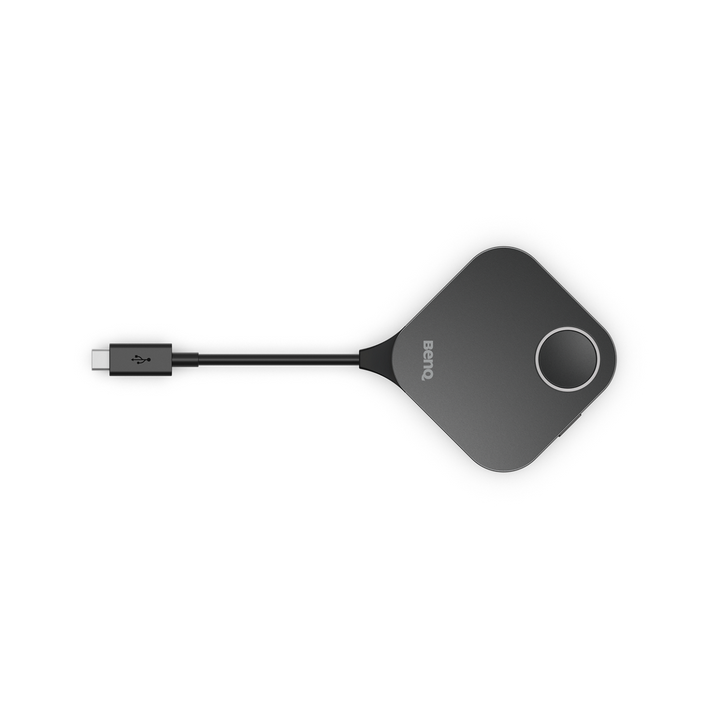
The Button is a pure hardware transmitter. A presenter plugs it into their laptop's USB Type-C port, or into HDMI with the supplied cable, and presses the front button. Nothing is downloaded, nothing is installed, no account is created and no wireless network is joined, so Windows, macOS, Linux and ChromeOS machines all behave identically and a guest laptop needs no help from IT. For a security team that means no agent on an unmanaged device, and presentation traffic that stays on the direct Button-to-Host link rather than the corporate LAN.
Swappable Type-C and HDMI Plugs, and a Side Key for Video Mode
The plug on the Button is changeable between USB Type-C and HDMI with a Phillips #0 screwdriver. That lets one room kit serve a mixed laptop estate, and lets facilities replace a worn plug instead of the whole transmitter after heavy daily use. A side button switches between presentation mode and video mode in one press, so the same transmitter handles a slide deck and a full-motion clip without settings changes. Output matches the WDC15 Host at up to 4K 30 Hz.
BenQ WDC15 Button Kit Datasheet — Technical Specifications
General
| Product | BenQ InstaShow WDC15 Button Kit (transmitter) |
| Part Number (SKU) | WDC15 Button Kit |
| Product Type | Add-on InstaShow Button (transmitter only) |
| Standalone Use | No — requires a BenQ InstaShow WDC15 Host |
| Software Required | None — no app, driver or network join |
| Button Connector Type | USB Type-C, swappable to HDMI |
| Local Warranty (Singapore) | Supplied by SourceIT with GST invoice |
Compatibility
| Compatible Host | BenQ InstaShow WDC15 Host |
| Not Compatible With | WDC10, WDC10C, VS20, VS25 or WDC25 Hosts |
| Maximum Output Resolution | Up to 4K 30 Hz |
| Video Output | HDMI 1.4 (with HDCP) |
| Wi-Fi Standard | Wi-Fi 5 |
| Wireless Frequency | 5 GHz |
| Wireless Data Rate (maximum) | AC1200 (5 GHz, 867 Mbps) |
| Wi-Fi Protected Access | WPA3 |
| Advanced Encryption Standard | AES128 |
| Host Devices Supported | Up to 16 devices per WDC15 Host |
What's In The Box
| Button (Transmitter) | x1 |
| Button HDMI cable | x1 |
| Safety statement | x1 |
Specifications are taken from BenQ's published product data for this model. Where BenQ does not publish a figure for this exact model it has been left out rather than estimated.
Compatibility & Installation
Which Host it works with
The BenQ InstaShow WDC15 Host only. InstaShow Buttons are not interchangeable across models — this Button will not pair with a WDC10, WDC10C, VS20, VS25 or WDC25 Host, and it cannot be used on its own.
Pairing
The Button is paired to the room's WDC15 Host once, using the Host's pairing procedure described in the WDC15 user manual. After pairing it works exactly like the Button supplied with the system.
What the presenter connects
USB Type-C on the laptop, or HDMI using the supplied Button HDMI cable. No app, driver, account or network join is required. The plug can be swapped between Type-C and HDMI with a Phillips #0 screwdriver.
Related products
Host system: BenQ InstaShow WDC15. For other rooms see the WDC10 and VS25, each with its own matching Button Kit.
Package Contents & BenQ InstaShow Range
In the box
- InstaShow Button (Transmitter) x 1
- Button HDMI cable x 1
- Safety statement x 1
Package contents follow BenQ's product data for this model; items not listed by BenQ are not claimed here.
BenQ InstaShow range
| Model | Max Output | Wi-Fi | Devices |
| WDC10 | 1080p 60 Hz | Wi-Fi 5 | 16 |
| WDC15 | 4K 30 Hz | Wi-Fi 5 | 16 |
| VS25 | 4K 60 Hz (HDMI) | Wi-Fi 6 | 64 |
Button kits
| Button Kit | Works With |
| WDC10 Button Kit | WDC10 Host |
| WDC15 Button Kit (this listing) | WDC15 Host |
| VS25 / WDC25 Button Kit | VS25 Host |
Datasheet & Downloads
- BenQ InstaShow WDC15 Button Kit product page
- BenQ InstaShow WDC15 Button Kit specifications
- BenQ InstaShow WDC15 Host product page
SourceIT can email the current data sheet revision with a quotation, including volume pricing for rooms that need several Buttons.
Frequently Asked Questions — BenQ WDC15 Button Kit
Can I use this on its own?
No. This is a transmitter only. It requires a BenQ InstaShow WDC15 Host already installed on the room display.
Will it work with my WDC10 Host?
No. InstaShow Buttons are model-specific. A WDC15 Button pairs only with a WDC15 Host. For a WDC10 room, order the WDC10 Button Kit instead.
Does the presenter have to install anything?
No. Plug the Button into USB-C or HDMI and press it. No app, driver, account or network join, on any operating system.
Can I change the plug from Type-C to HDMI?
Yes. The plug is swappable using a Phillips #0 screwdriver, so the same Button serves a USB-C laptop or an HDMI one, and a worn plug can be replaced.
How many Buttons can one Host take?
Up to 16 devices can be connected to a WDC15 Host.
What does the side key do?
It switches the Button between presentation mode and video mode, so a slide deck and a full-motion clip are both handled without changing settings.
What resolution does it support?
Up to 4K 30 Hz over HDMI 1.4 with HDCP, matching the WDC15 Host.
What warranty and invoice do I get?
Every unit sold by SourceIT carries a local Singapore warranty and is supplied with a GST invoice.