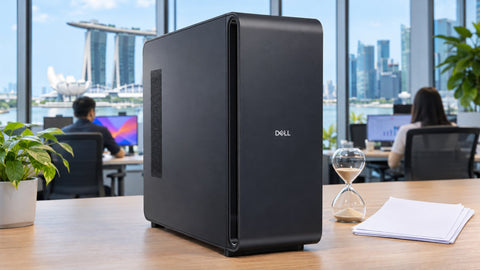
Getting a DGX Station GB300 from the box to its first answered prompt is mostly an afternoon of cabling, two logins and one NVIDIA playbook. The catch is that NVIDIA publishes no user guide, quick start or first-boot page for the GB300 Station. Those exist only for the older DGX Station A100 and for DGX servers. The day-one hardware steps therefore come from each OEM's manual, and Dell's Singapore-site setup manual for the Pro Max with GB300 is the most complete public one. After that, three things matter. First, confirm the shipped image, which is "Ubuntu 24.04 LTS with NVIDIA AI Developer Tools", not DGX OS 7. Second, point your containers at the GB300 rather than the RTX PRO display card. Third, serve a first model with NVIDIA's DGX Station vLLM playbook. The steps below are compiled from NVIDIA and OEM documentation as of 9 Nov 2026. SourceIT has not run them on a unit itself.
What are the steps from unboxing to a first model?
| Stage | What to do | Where it is documented |
|---|---|---|
| 1. Place the unit | Two people to lift (27 kg for HP and ASUS up to about 40 kg for Supermicro). Dell says the system "is designed to work in stand orientation". | OEM spec pages; Dell Setup and Specifications |
| 2. Cable before power | Keyboard and mouse, RJ45 to the 10 GbE port (network), RJ45 to the 1 GbE BMC port, monitor to the RTX PRO card | Dell Pro Max with GB300 setup manual (en-sg) |
| 3. Power on | PSU rocker OFF, connect power, rocker ON, wait about three minutes, press the power button. First boot can take up to eight minutes. | Dell setup manual |
| 4. BMC first login | Log in to the BMC web interface and change the password (Dell forces this at first login) | Dell setup manual |
| 5. OS first boot | Set username, password, hostname, timezone, language and keyboard layout | NVIDIA DGX Station software stack page |
| 6. Check the platform | Confirm the GB300 is seen by DCGM and list its MIG profiles | DCGM Getting Started; MIG User Guide |
| 7. Pick the right GPU | Select the GB300 by UUID so containers don't land on the RTX PRO card | NVIDIA DGX Station vLLM playbook |
| 8. First model | Serve a model with vLLM and check its health and model endpoints | NVIDIA DGX Station vLLM playbook (15–30 minutes) |
Source: NVIDIA DGX Station product page and Development Guide software stack page (updated 30 Oct 2026); Dell Pro Max with GB300 FCT6263 Setup and Specifications and Service Manual (en-sg, 22 Sep 2026); OEM product pages for HP, ASUS and Supermicro; NVIDIA DGX Station playbooks at build.nvidia.com/station. All fetched 9 Nov 2026. Other OEMs' manuals may order steps differently.
What does NVIDIA actually document for first boot?
Less than you might expect. NVIDIA's quick start and user guides cover the DGX Station A100 and DGX servers. For the GB300 Station it provides a Development Guide (architecture, porting, memory, power sharing) and task playbooks; hardware setup belongs to the OEM.
The operating system is also an OEM matter. NVIDIA, ASUS and Supermicro describe it as "Ubuntu with NVIDIA AI Developer Tools", and Dell and HP specify Ubuntu 24.04 LTS. NVIDIA's stack page describes an Ubuntu 24.04 server image with desktop packages on Linux 6.17. It also lists pre-installed components: the NVIDIA Container Toolkit, CUDA Toolkit, Data Center GPU Manager (DCGM), DOCA-OFED, the GPU driver and NVIDIA's optimised kernel. NVIDIA's DGX OS 7 documentation does not list the DGX Station GB300 as a supported platform, so don't follow DGX OS 7 server procedures as if they applied. Recovery images come from OEM repositories, and HP's specification notes that the ZGX Fury ships without recovery media. Ask your supplier how a re-image is done before you need one.
What should be cabled before you press the power button?
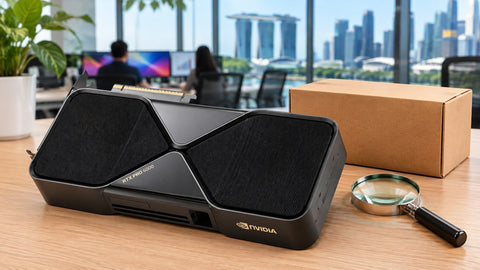
Dell's sequence is a sensible template for any OEM. Connect the keyboard and mouse. Connect one RJ45 cable to the 10 GbE port for your office network and a second to the 1 GbE port that serves the baseboard management controller (BMC). Connect your monitor to the RTX PRO graphics card, if fitted. The GB300 has no display output of its own, and NVIDIA says the Mini DisplayPort "is intended only for system management". Make sure the PSU rocker switch is off, connect the power cable, then switch the rocker on. Dell's manual says you "must wait for around three minutes before you press the power button" and that the first boot "may take up to eight minutes".
Two power notes for Singapore. Dell warns: "Use the power cable that is shipped along with your computer" and "Do not use household extension cables". Its en-sg manual illustrates only US NEMA plugs, so confirm the local cord before delivery. Dell's PSU table gives a maximum input of 8 A at 240 V for 1,600 W output, while NVIDIA's "20A circuit required" wording is written for 120 V markets. Site power, placement and UPS are covered in our DGX Station GB300 office installation checklist.
What should you check at the first logins?
Start with the BMC, because it is the remote-control door to the machine. On Dell units it runs a MegaRAC OneTree interface and forces a password change at first login. Other OEMs' default credentials are not published, so get them from the supplier and change them at once. Record the BMC's IP address. NVIDIA describes the BMC as "secure out-of-band remote management" through a web UI and Redfish, so it belongs on a management network, not the general office LAN.
The OS first boot asks for a username, password and hostname, plus timezone, language and keyboard layout. NVIDIA's stack page lists UEFI Secure Boot and TPM as on by default; leave them on. Our DGX Station GB300 security hardening checklist covers what to lock down next.
How do you check that the GB300 is working?
DCGM is pre-installed. NVIDIA's DCGM Getting Started guide shows how to start the service and list the GPUs it can see, and the MIG User Guide shows how to list the partition profiles your unit supports:
$ sudo systemctl --now enable nvidia-dcgm
$ dcgmi discovery -l
nvidia-smi mig -lgip
Sources: DCGM Getting Started; MIG User Guide, Getting Started. The MIG guide names the GB300 profiles 1g.31gb up to 7g.251gb, while NVIDIA's older Station MIG playbook uses different names. Trust what your own unit reports.
Two Arm gotchas show up on day one: NVIDIA's porting guide says "legacy applications or models that require a 4 KB page size are not supported at this stage", and x86-only tools won't run natively on the Grace CPU. Prefer NVIDIA's multi-architecture NGC containers. The Grace Arm software guide covers this in more depth.
Pin the GB300 by UUID before you pull a single model. With an RTX PRO display card fitted, "all GPUs" means two very different GPUs.
Which GPU will your containers see?
Most Stations ship with an RTX PRO card for the display, and that card is also a CUDA device. NVIDIA's DGX Station vLLM playbook therefore selects the GB300 explicitly by UUID and replaces --gpus all with --gpus "device=${GB300_UUID}". As written in the playbook:
GB300_UUID=$(nvidia-smi --query-gpu=uuid,name --format=csv,noheader | \
awk -F, 'tolower($2) ~ /gb300/ {gsub(/[[:space:]]/, "", $1); print $1; exit}')
: "${GB300_UUID:?No GB300 found}"
Source: NVIDIA, Serve LLMs with vLLM on One Device (DGX Station).
How do you serve the first model?
Follow NVIDIA's vLLM playbook rather than improvising. Its prerequisites are one DGX Station, NVIDIA Sync on your laptop, Docker available to your user, the Hugging Face CLI and SSH access. NVIDIA estimates 15 to 30 minutes for the intermediate path, depending on network speed. The playbook's Station recipes use the upstream vllm/vllm-openai containers with NVFP4 models, for example Nemotron 3 Super 120B A12B on tag v0.31.0. The full docker run line is generated on the playbook's recipe page, so copy it from there rather than from a blog. Once the server is up, the playbook checks it with:
curl --fail-with-body -i http://localhost:8000/health
curl --fail-with-body -sS http://localhost:8000/v1/models
ssh -N -L 8000:127.0.0.1:8000 user@dgx-host
The last line tunnels the API to your laptop. One warning: the playbook's quick-start server listens on all interfaces without authentication. Before anyone else on the network can reach it, add an API key, keep it behind an SSH tunnel or firewall it. Production serving, model choice and memory sizing are in our vLLM on DGX Station GB300 guide.
What comes after the first answer?
The first prompt proves the platform, not the service. NVIDIA AI Enterprise (software support and NIM) is a separate purchase. Next comes monitoring, which our DCGM, Prometheus and Grafana guide covers. Then comes the formal acceptance and handover, covered in what happens after your DGX Station arrives. HP and MSI also differ in the extra tools they ship; see HP vs MSI GB300 software experience.
Buying in Singapore
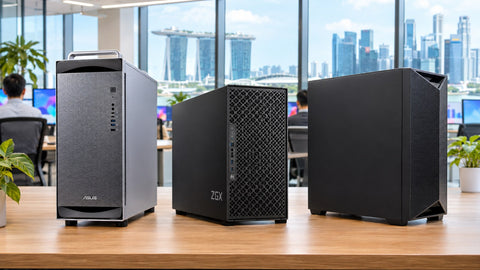
SourceIT lists DGX Station GB300 systems from six OEMs, each supplied through the OEM's channel: the ASUS ExpertCenter Pro ET900N G3, Dell Pro Max with GB300, HP ZGX Fury G1n, MSI XpertStation WS300, GIGABYTE W775-V10-L01 and Supermicro ARS-511GD-NB-LCC. All six are price on request, which is a supplier condition rather than a SourceIT choice. We help validate the configuration, including the display card and drive layout, prepare the end-user paperwork suppliers ask for, coordinate with the OEM and hand the unit over. To start, use Request for Quotation on the product page, call (65) 6978 3502, email Sales@sourceit.com.sg or use our contact page.
Frequently asked questions
Does the DGX Station GB300 run DGX OS? Not according to NVIDIA's own documentation. It ships with Ubuntu 24.04 LTS and NVIDIA AI Developer Tools from OEM repositories, and NVIDIA's DGX OS 7 platform list does not include it.
How long does the first boot take? Dell says to wait about three minutes after connecting power before pressing the power button, and that the first boot can take up to eight minutes.
Can I plug a monitor into the GB300 itself? No. The GB300 has no display output. The Mini DisplayPort is for system management only, so connect your monitor to the RTX PRO card.
Why does my container use the wrong GPU? The RTX PRO display card is also a CUDA device. NVIDIA's playbook selects the GB300 by UUID and passes it with --gpus "device=..." instead of --gpus all.
Is NVIDIA AI Enterprise included? No. NVIDIA describes it as a separate software licence. The Station ships with the base Ubuntu image and NVIDIA's developer tools.

SourceIT Approved
Researched and verified by the SourceIT team for Singapore buyers.